Chrome SEO Tools: A Practical Guide
The Chrome SEO tools worth using, grouped by job: DevTools, Lighthouse and free extensions for tags, redirects, rendering and speed, with their limits.


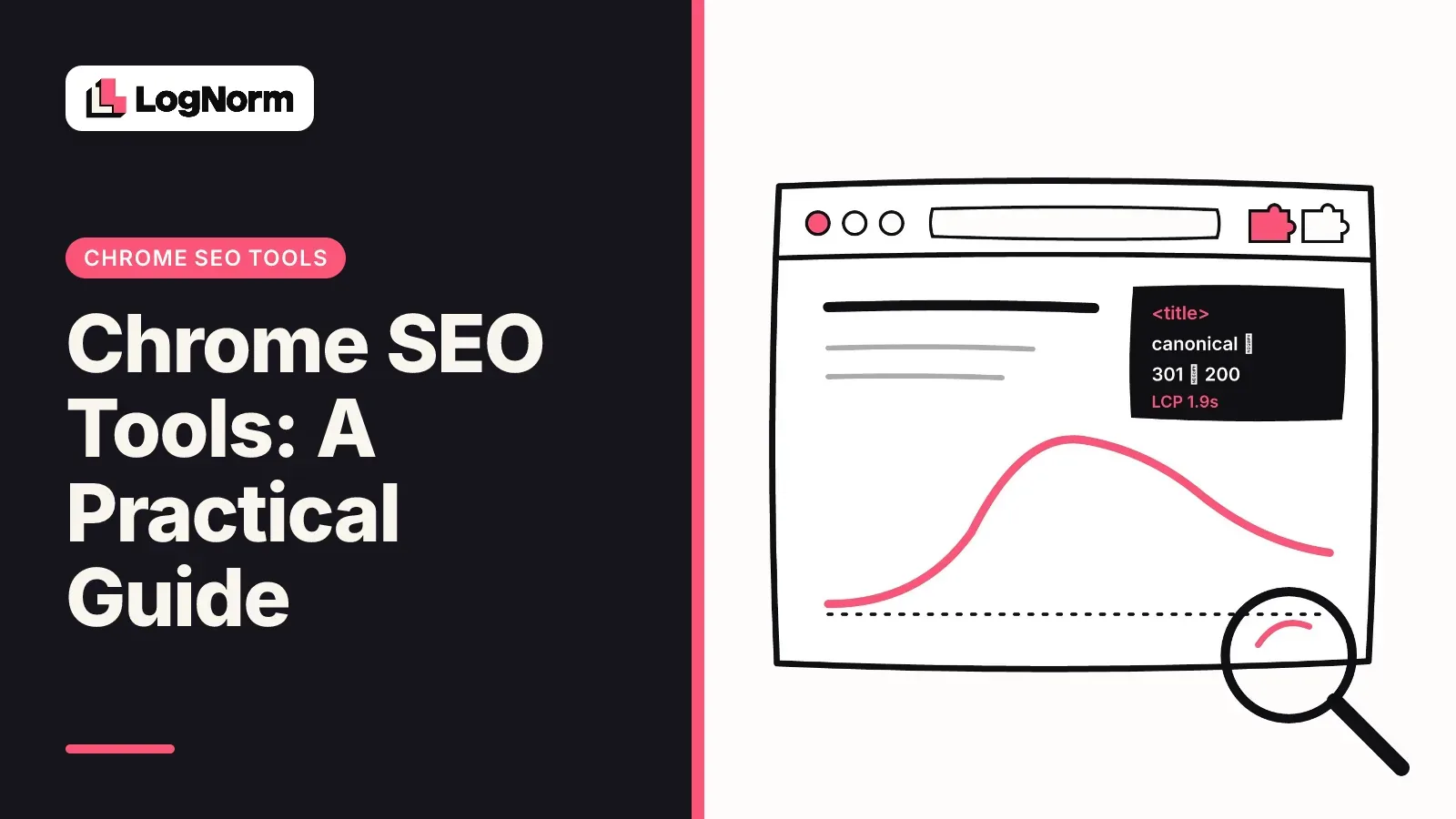
The most useful Chrome SEO tools are already in your browser: DevTools and Lighthouse handle status codes, rendering, speed and a basic SEO audit without installing anything. Add four or five free extensions for the checks DevTools makes slow, such as reading every meta tag at once or tracing a redirect chain, and you can spot-check any page in under a minute.
This guide groups the tools by the job they do, says what each is good and bad at, and lists only extensions whose Chrome Web Store listing we checked in October 2026. Where a list elsewhere ranks its own vendor's extension first, you will not find that here.
Chrome SEO tools by job
Pick Chrome SEO tools by the check you need to run: built-in DevTools panels cover status codes, rendering and speed, and a small set of free extensions covers on-page tags, robots rules and broken links.
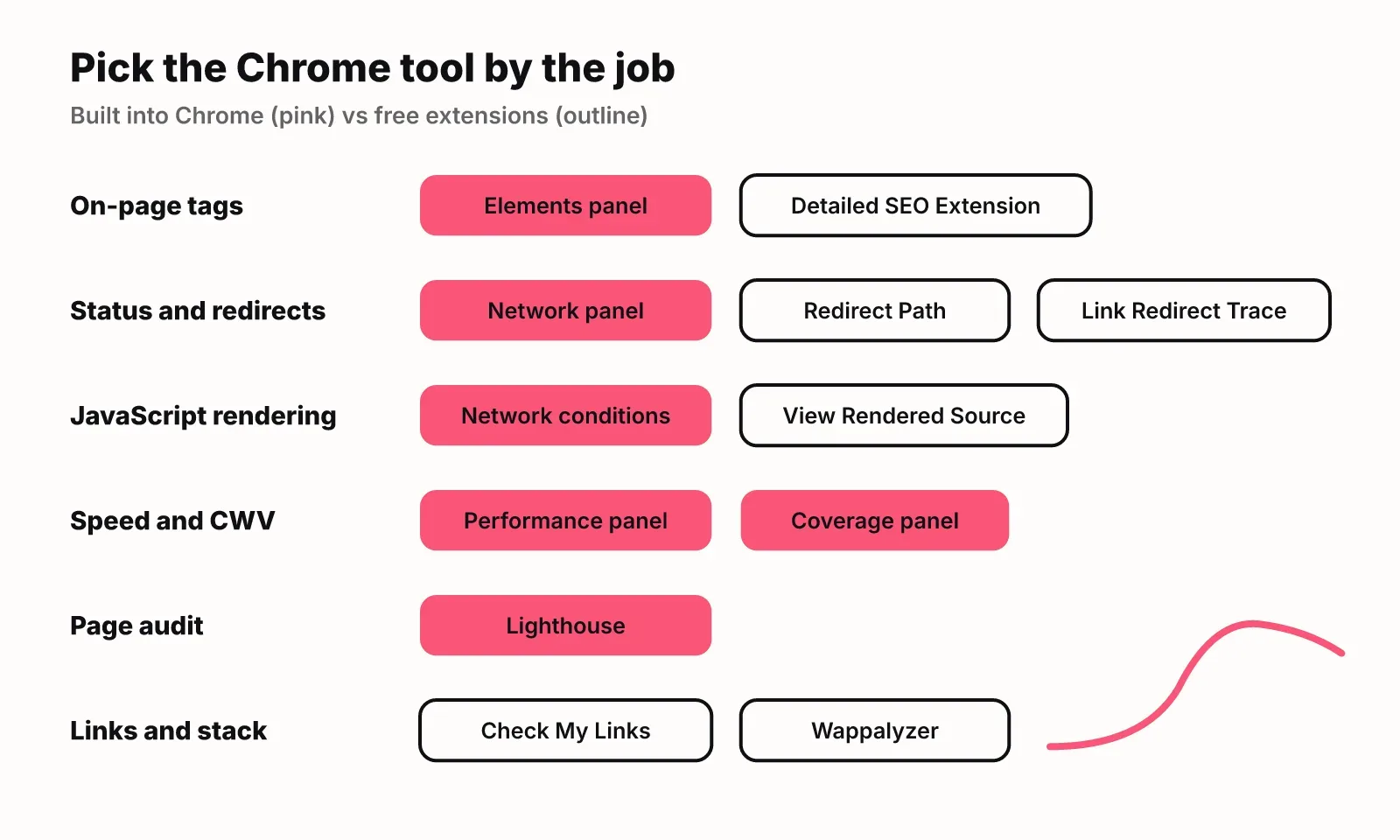
| Job | Built into Chrome | Extension worth adding | Good at | Weak at |
|---|---|---|---|---|
| On-page tags | Elements panel, view-source | Detailed SEO Extension, SEO META in 1 CLICK | Every tag on one screen | One page at a time |
| Crawl and index rules | Lighthouse "blocked from indexing" audit | Robots Exclusion Checker | robots.txt, meta robots and X-Robots-Tag together | Cannot tell you what Google actually indexed |
| Status codes and redirects | Network panel | Redirect Path, Link Redirect Trace | Every hop of a chain | Only URLs you visit |
| JavaScript rendering | Network conditions (user agent) | View Rendered Source | Raw vs rendered HTML diff | Chrome is not Google's renderer |
| Speed and Core Web Vitals | Performance panel, Coverage panel | None needed | Live LCP, CLS, INP plus field data | Your machine is not your users' phones |
| Page audit | Lighthouse | None needed | Fast checklist of basics | A perfect score says little about rankings |
| Links, keywords, stack | None | Check My Links, Keywords Everywhere, Wappalyzer | Quick answers on the page you are on | Search volume is paid |
If you install only two extensions, make them Detailed SEO Extension and Redirect Path. Everything else on the list either duplicates DevTools or fits a narrower job.
On-page tags: titles, descriptions, canonicals, headings
For on-page tags, a one-click extension beats DevTools: Detailed SEO Extension and SEO META in 1 CLICK show the title, meta description, canonical, robots tag and heading outline of the current page in a single panel.
Detailed SEO Extension is free and was last updated in June 2026. Its store listing now names Ahrefs as the publisher. It shows title, description, canonical, meta robots and word count, plus heading, link, image and social preview tabs. It is the best general-purpose pick because it surfaces mismatches fast, such as a canonical pointing somewhere you did not expect.
SEO META in 1 CLICK covers similar ground: title and description with their lengths, the H1 to H6 order, images with and without alt text, Open Graph and Twitter data, and links to robots.txt and sitemap.xml. Its listing was last updated in August 2024, so treat it as stable rather than actively developed.
Both read what the browser received. When a tag looks wrong, confirm it in the Elements panel (rendered DOM) and in view-source (raw HTML from the server). If the two disagree, JavaScript is changing your tags, and that is a rendering question covered below. To check title and description length across a page list rather than one URL at a time, a crawler or LogNorm's free SEO checker is faster.
Crawl and index rules
The fastest way to see whether a page can be crawled and indexed is Robots Exclusion Checker, which reads robots.txt, meta robots, X-Robots-Tag and the canonical for the page you are on and flags any block.
Robots Exclusion Checker (version 1.3.0, updated March 2026) also shows whether robots.txt excludes 14 AI bots from OpenAI, Anthropic, Google, Perplexity, Meta and Apple, and highlights nofollow, ugc and sponsored links. That makes it useful for AI visibility checks as well as classic SEO. Its weak spot is that it reports rules, not outcomes. Whether Google indexed the page is a question for Search Console's URL Inspection.
Lighthouse covers part of this. Its "Page is blocked from indexing" audit checks for noindex in a meta robots tag or an X-Robots-Tag header. It only flags rules that block all crawlers, so a noindex aimed at Googlebot alone is easy to miss.
Robots.txt mistakes are common enough to check every time. In the 2024 Web Almanac, 8.43% of desktop pages and 7.40% of mobile pages failed Lighthouse's valid robots.txt check, and the 2025 edition found that 13% of robots.txt requests returned a 404.
Status codes and redirects
Redirect Path is the quickest way to check status codes in Chrome: its toolbar icon shows the 301, 302, 404 or 500 behind any URL you load, plus meta refresh and JavaScript redirects, without opening DevTools.
Redirect Path by Ayima reached version 4.0.0 in May 2026. It also shows response headers and server IP. Its listing says the work happens on your machine and nothing is sent anywhere except auto-updates, which matters if you check client or staging URLs.
Link Redirect Trace goes deeper per hop: canonical tags, robots.txt blocks, noindex and nofollow on each step, and bot-specific blocking. It also shows the vendor's own link metrics. Its last update was June 2024, so prefer Redirect Path for daily use and keep this one for awkward chains.
You do not need either for a one-off. Open the Network panel, tick Preserve log, load the URL, and each hop appears as its own row with its status code. The extensions win because they run on every page you visit, so you notice a redirect you were not looking for.
JavaScript rendering
To see what JavaScript changes on a page, use View Rendered Source: it shows the raw HTML from the server, the rendered DOM and a line-by-line diff between them.
View Rendered Source is the only extension here built for this job. It can emulate a mobile user agent and request the raw source as Googlebot, which helps when a site serves crawlers different HTML. The catch is age: version 4.0 dates from June 2023. It still does one simple thing, but expect rough edges.
Without an extension, open DevTools, go to Network conditions, untick "Use browser default" under User agent and set the string you want. Chrome's own docs note this changes what the server sends you, not how Chrome works internally.
Both tools show what your Chrome renders. Google renders with its own infrastructure and timeouts, so if a title, link or block of copy only exists after JavaScript runs, confirm it with URL Inspection in Search Console before you call the page safe.
Speed and Core Web Vitals
Chrome's Performance panel is now the main Chrome tool for Core Web Vitals: it shows live LCP and CLS as soon as you open it, records INP as you interact, and can pull Chrome UX Report field data to compare against your local numbers.
If you still have the Web Vitals extension installed, remove it. Google ended support for it on January 7, 2025 and moved its features into the Performance panel. The panel also shows the LCP element with its phase breakdown, a log of layout shifts behind CLS, and the interactions that drive INP.
The Coverage panel finds JavaScript and CSS that loads but never runs. It is the quickest way to show a developer why a page is heavy.
Treat local numbers as a lead, not a verdict. Your laptop on office Wi-Fi is faster than your users' phones, which is why the field data comparison matters. The gap is real across the web: in 2024, 48% of mobile sites passed the Core Web Vitals assessment against 54% on desktop, and 59% of mobile pages had a good LCP against 74% of desktop sites. Throttle the CPU and network in the Performance panel before you sign off on a fix.
Lighthouse SEO audit: what it checks and what it misses
Lighthouse is Chrome's built-in page audit: open DevTools, choose the Lighthouse panel and run the SEO category to check a page against a short list of crawl and markup basics.
You can also run Lighthouse from the command line, as a Node module in CI, or through PageSpeed Insights. Running it in DevTools has one real advantage: it can audit pages behind a login, because it uses your session.
The SEO audits cover a missing or empty meta description, pages blocked from indexing, unsuccessful HTTP status codes, link text that does not describe the target, invalid hreflang, invalid rel=canonical and invalid robots.txt. Structured data is listed as a manual check, so Lighthouse will not validate your schema for you.
A perfect SEO score means the basics are in place. It does not mean the page will rank, and most sites already pass several of these checks. In the 2024 Web Almanac, 98% of pages with a canonical element passed the valid rel=canonical audit. Use Lighthouse to catch regressions after a deploy, not to judge whether content deserves to rank.
Links, keywords and tech stack
Three more extensions earn a place for narrower jobs: Check My Links for broken links on a page, Keywords Everywhere for search data inside Google, and Wappalyzer for seeing what a site is built with.
Check My Links scans every link on the page and highlights valid, broken and redirected ones. You can exclude the header and footer so you only test the content area, and export a report. Updated in October 2026, it is the best choice for checking a long article before you publish it.
Keywords Everywhere is freemium. The free version shows related keywords, "People Also Search For" widgets and some site metrics. Search volume, CPC and trend data for Google and 15+ other sites need the paid version. SEO Minion, a popular on-page extension, is now only available on certain paid Keywords Everywhere plans according to its store reviews, so check before you plan around it.
Wappalyzer identifies the CMS, framework, analytics and CDN behind a site. For SEO, that tells you in a second whether a competitor's pages are server-rendered or a JavaScript app, and which CMS limits you will hit on a client site.
Where Chrome tools stop
Chrome SEO tools check the page you have open, so they miss every problem on pages you never visit; for site-wide issues you need a crawl.
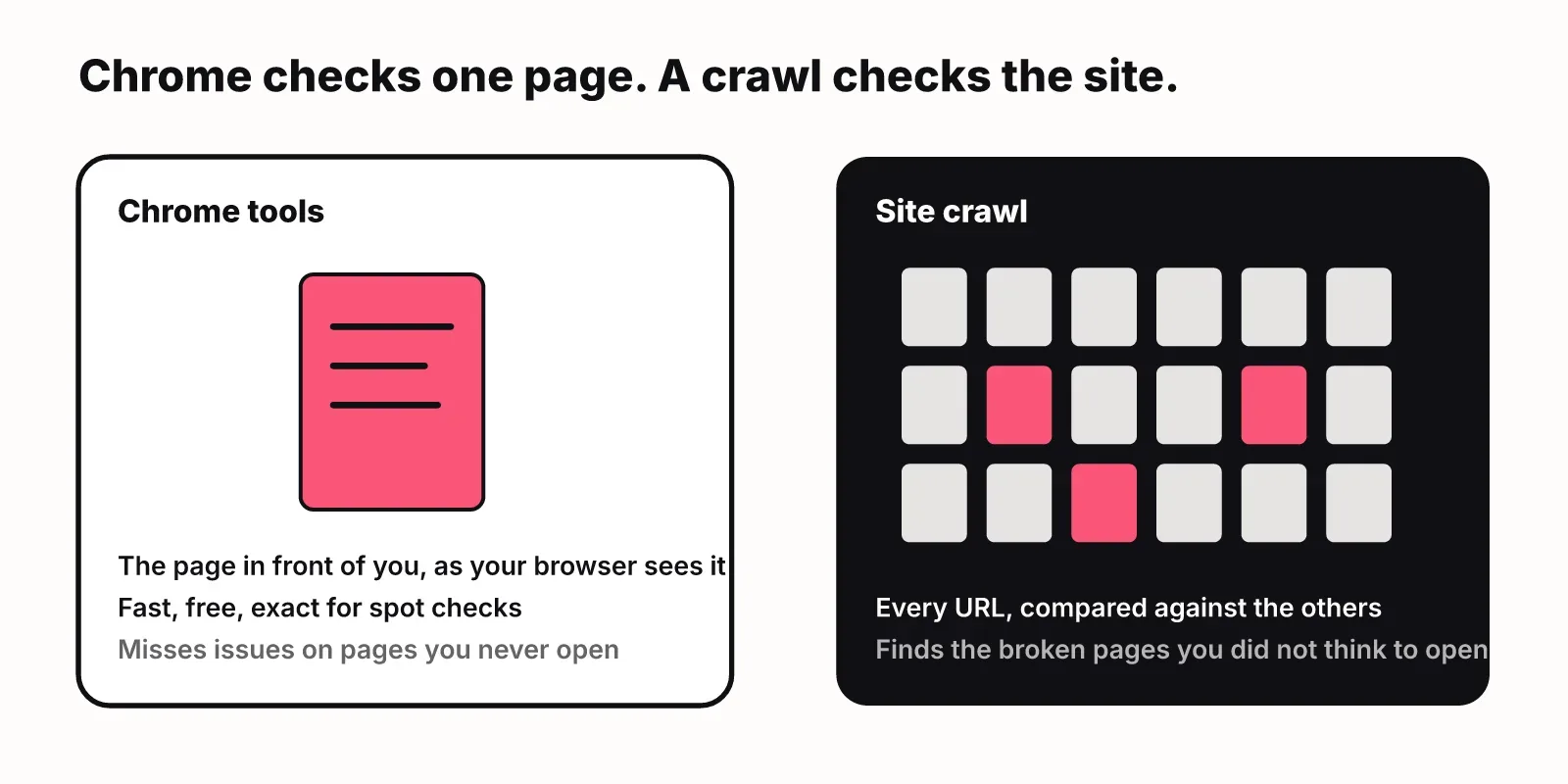
A redirect chain on one old blog post, a noindex left on a template, or 40 pages sharing a title will not show up while you browse your homepage. A crawler visits every URL and compares them, which is how duplicates and orphan pages surface.
The other gap is priority. An extension tells you a meta description is missing. It does not tell you whether that matters more this week than a slow LCP on your pricing page. LogNorm runs that crawl as a site audit, turns each finding into a move ranked against everything else, and re-checks fixes on the live site, so the ranked weekly plan stays honest. For a quick look first, run one URL through the free SEO checker or browse the other free SEO tools. If AI agents make your fixes, our guide to AI SEO agents compares the options.
Keep the Chrome tools for what they do best: confirming a fix on a live page in seconds.
FAQ
Is there a detailed SEO extension for Chrome?
Yes. Detailed SEO Extension is a free Chrome extension that shows a page's title, meta description, canonical, meta robots, word count, headings, links, images and social previews in one click. Its Chrome Web Store listing names Ahrefs as the publisher.
What are the best SEO Chrome extensions?
For most people: Detailed SEO Extension for on-page tags, Redirect Path for status codes and redirects, Robots Exclusion Checker for crawl and index rules, View Rendered Source for JavaScript sites and Check My Links for broken links. Use the built-in Lighthouse and Performance panels instead of a separate speed extension.
Does Chrome have a built-in SEO tool?
Yes. Lighthouse is built into Chrome DevTools and includes an SEO category that checks meta descriptions, indexing blocks, status codes, link text, hreflang, canonicals and robots.txt. The Performance panel shows Core Web Vitals, and the Network panel shows status codes and redirects.
Are free SEO Chrome extensions enough for professionals?
For checking single pages, yes: the free extensions and DevTools cover tags, redirects, rendering and speed. They are not enough for site-wide audits, keyword volumes or rank tracking. Those need a crawler, Search Console and a keyword data source.
What is the difference between on-page and technical SEO checks?
On-page checks look at what a page says and how it is marked up: title, description, headings, alt text and links. Technical checks look at whether search engines can reach and render it: status codes, redirects, robots rules, canonicals, JavaScript rendering and speed.
How do you choose an SEO extension for your workflow?
Start from the check you repeat most, then pick the one extension that does it in one click. Prefer extensions updated in the last year, check what is free on the store listing, and skip any that duplicate a DevTools panel you already use.